


Trusted by 1M+ creators
Image Text Enhancer
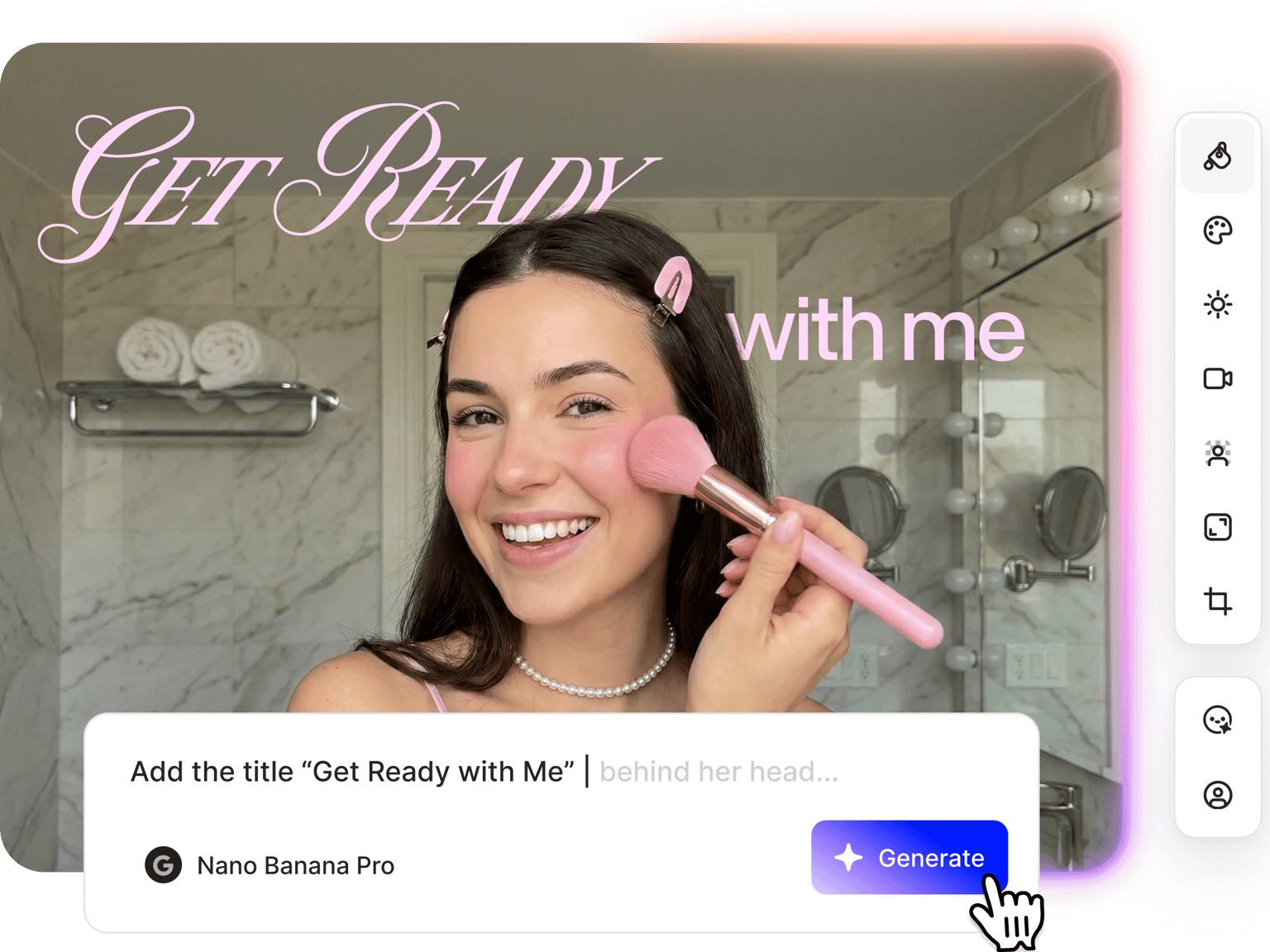
Sharpen and enhance blurry or pixelated text in any image. Upload your photo, describe the edit, and the AI makes the text readable
No credit card required
4.6
2,100+ reviews





Make blurry text in images sharp and readable
Compressed screenshots, photographed documents, pixelated scans — blurry text in images is a common problem with no easy fix in standard photo editors. Upload your image to VEED's AI image text enhancer, describe what you need, and the AI sharpens the text and improves legibility instantly. Works on screenshots, photos, and any image where text is too degraded to read clearly.
How to enhance text in an image:
Step 01
Upload image
Upload the photo or screenshot with blurry or pixelated text.
Step 02
Unblur text
Type a prompt, such as 'sharpen and unblur the text in this image, improve legibility, enhance contrast.' For low-resolution photos of documents or signs, try: 'enhance text quality, sharpen fine details, improve contrast and readability.'
Step 03
Download your enhanced image
Preview the result and download. Generate variations or adjust your prompt to make more enhancements.
Learn More
Watch this Nano Banana Pro demo:
Unblur text in images and screenshots
Messaging apps, file compression, and screen recording tools all reduce image quality. And text is usually the first thing to go blurry. Upload your screenshot or image and describe the fix: 'sharpen and unblur the text, improve legibility, enhance contrast.' For text-specific edits, access AI models like Qwen Image Edit, which handles text rendering within images well.
Enhance low-quality text in photos
Photographed menus, signs, labels, or physical documents often come out pixelated or unreadable — especially when shot from a distance or in poor lighting. This is a resolution and clarity issue. Enter a prompt, such as 'enhance text quality, sharpen details, restore contrast and readability.' For heavily degraded or low-resolution images, you can use the image upscaler first to improve base quality before enhancing the text.
Take your enhanced image further
Once your text is readable, the image becomes a usable asset for social posts and video content. Drop it into the video editor to use it as a supporting visual, quote graphic, or stat overlay. Content creators can take a screenshot with a key insight, enhance the text, and build it into a video or presentation without switching platforms. One image, multiple uses.
FAQ
Text becomes blurry through image compression, low resolution, poor lighting when photographing a document, or motion blur. AI enhancement works well for mild to moderate degradation. It can sharpen pixelated text, improve contrast, and restore legibility. Severely pixelated or heavily compressed images may only partially recover. The more detail that remains in the original image, the better the enhancement result.
To unblur text in an image:
- Upload your image or screenshot to the AI image editor.
- Type a detailed prompt: 'sharpen and unblur the text in this image, improve legibility, enhance contrast and sharpness.'
- Generate and download. Adjust the prompt to push the enhancement further if needed. For text-heavy images, you can try models like Qwen Image Edit for more accurate text rendering.
Yes. Screenshots often lose text quality when compressed by messaging apps, sharing platforms, or screen recording tools. Upload the screenshot and prompt: 'sharpen blurry text, restore legibility, improve contrast.' Results depend on how heavily the image was compressed. Mildly blurry text enhances well, while heavily degraded screenshots may only partially recover.
The image text enhancer sharpens existing text that’s already in the image.
- To add new text to a photo (captions, labels, date stamps), you can add text to photo in the AI image editor too.
- To edit existing text in an image, such as changing a word or updating a label, use a prompt like: 'change the text that says [X] to [Y]'.
The image text enhancer runs on AI credits. Each image generation costs credits based on the AI model you select. Sign up to see what’s available on your plan. Check the pricing page for more information.
Loved by creators.
Loved by the Fortune 500
“
With VEED I didn't need 15 tutorials - I jumped straight in and started editing.
Gwenne Wilcox
Founder,
Brand Brainery
“
You can go beyond choppping things. VEED actually makes my videos look great.
Michael Glover
Demand Gen Manager,
ConvertFlow
“
The first four videos i created with VEED got over 40,000 impressions on LinkedIn.

Travis Tyler
Senior Content Producer,
PandaDoc
“
I found VEED at the right time: if you're making UGC ads and not using Eye Contact Correction and Noise Reduction on VEED you're missing out on ROI.
Sebastian Schurgers
Head of Growth Marketing,
Gronda
“
With VEED I didn't need 15 tutorials - I jumped straight in and started editing.
Gwenne Wilcox
Founder,
Brand Brainery
“
You can go beyond choppping things. VEED actually makes my videos look great.
Michael Glover
Demand Gen Manager,
ConvertFlow
“
The first four videos i created with VEED got over 40,000 impressions on LinkedIn.
Travis Tyler
Senior Content Producer,
PandaDoc
“
I found VEED at the right time: if you're making UGC ads and not using Eye Contact Correction and Noise Reduction on VEED you're missing out on ROI.
Sebastian Schurgers
Head of Growth Marketing,
Gronda
“
The first four videos i created with VEED got over 40,000 impressions on LinkedIn.
Travis Tyler
Senior Content Producer,
PandaDoc
“
I found VEED at the right time: if you're making UGC ads and not using Eye Contact Correction and Noise Reduction on VEED you're missing out on ROI.
Sebastian Schurgers
Head of Growth Marketing,
Gronda
“
With VEED I didn't need 15 tutorials - I jumped straight in and started editing.
Gwenne Wilcox
Founder,
Brand Brainery
“
You can go beyond choppping things. VEED actually makes my videos look great.
Michael Glover
Demand Gen Manager,
ConvertFlow
Discover more
- Add Jewelry to Photo
- Add Noise to Image
- Add Text to Photo
- AI Action Figure Generator
- AI Background Changer
- AI Blog Post Image Generator
- AI Business Card Generator
- AI Christmas Photo
- AI Clothes Changer
- AI Color Correction
- AI Coloring Page Generator
- AI Cosplay
- AI Doll Generator
- AI Embroidery Generator
- AI Expression Changer
- AI Face Editor
- AI Fairy
- AI Family Portrait
- AI Filter Remover
- AI Flyer Generator
- AI Ghostface Generator
- AI God Image Editor
- AI Greeting Card Generator
- AI Hair Color Changer
- AI Hairstyle Changer
- AI Image Variation Generator
- AI Leprechaun Generator
- AI LinkedIn Photo
- AI Magazine Cover Generator
- AI Makeup
- AI Mascot Generator
- AI Mask Generator
- AI Mugshot Generator
- AI NFT Generator
- AI Passport Photo
- AI Pet Portrait Generator
- AI Photo Restoration
- AI Pinup Generator
- AI Pose Changer
- AI Product Photography
- AI Renaissance Painting
- AI Replace
- AI Room Design
- AI Sculpture
- AI Shoe Generator
- AI Smile Generator
- AI Snow
- AI Stencil Maker
- AI Time Machine
- AI Vintage Photo Generator
- AI Wedding Photo Generator
- AI Yourself
- Baby Face Generator
- Bald Filter
- Beard Filter
- Body Shape Editor
- Buzz Cut Filter
- Change Color of Image
- Change Eye Color AI
- Color Palette Generator
- Furry AI Generator
- Medal Generator
- Object Remover
- Old Filter
- Photo Angle Change AI
- Photo Date Editor
- Photo to Sketch
- Photo to Watercolor
- Pop Art Generator
- Relight Photo
- Sketch to Image AI
- Speech Bubble
- Stained Glass Generator
- Steampunk AI Generator
- Thanksgiving AI
- Tie Dye Generator
- Turn Photo into Line Drawing
Explore related tools
More from VEED
Best AI Image Generators: Top Tools for Creating Stunning Visuals in 2026
From text prompts to breathtaking visuals in mere seconds, AI image generators have revolutionized the way we create digital art. Whether you're building content for social, school, or just for fun, turning ideas into visuals has never been easier. This guide breaks down the best AI image generators of 2025. You'll see what each tool does well, where it struggles, and who it’s built for, so you can pick the right one for your goals and budget.

AI Art Prompts: How to Write Better Prompts, Creative Examples, and Tools to Try
Getting your AI art prompts is the key to winning with generative AI tools. Learn how to write better prompts here.

How to Cartoonize Your Photo with AI (Step-by-Step Guide)
Learn how to cartoonize your photo using AI, and how to use ChatGPT to craft the perfect visual prompt to bring your unique style to life.
Trusted by 1M+ creators
When it comes to amazing videos, all you need is VEED
No credit card required
More than an image text enhancer
VEED is an AI video creation platform where image editing is just the starting point. Beyond enhancing text, the full AI image editor handles object removal, background changes, color correction, and more. Once your image is ready, animate it with AI, drop it into a video project, or use it as a thumbnail or social asset. Go from image enhancement to video creation in one platform. Sign up for VEED now.