4.6
2,100+ reviews















Online WMV Cutter
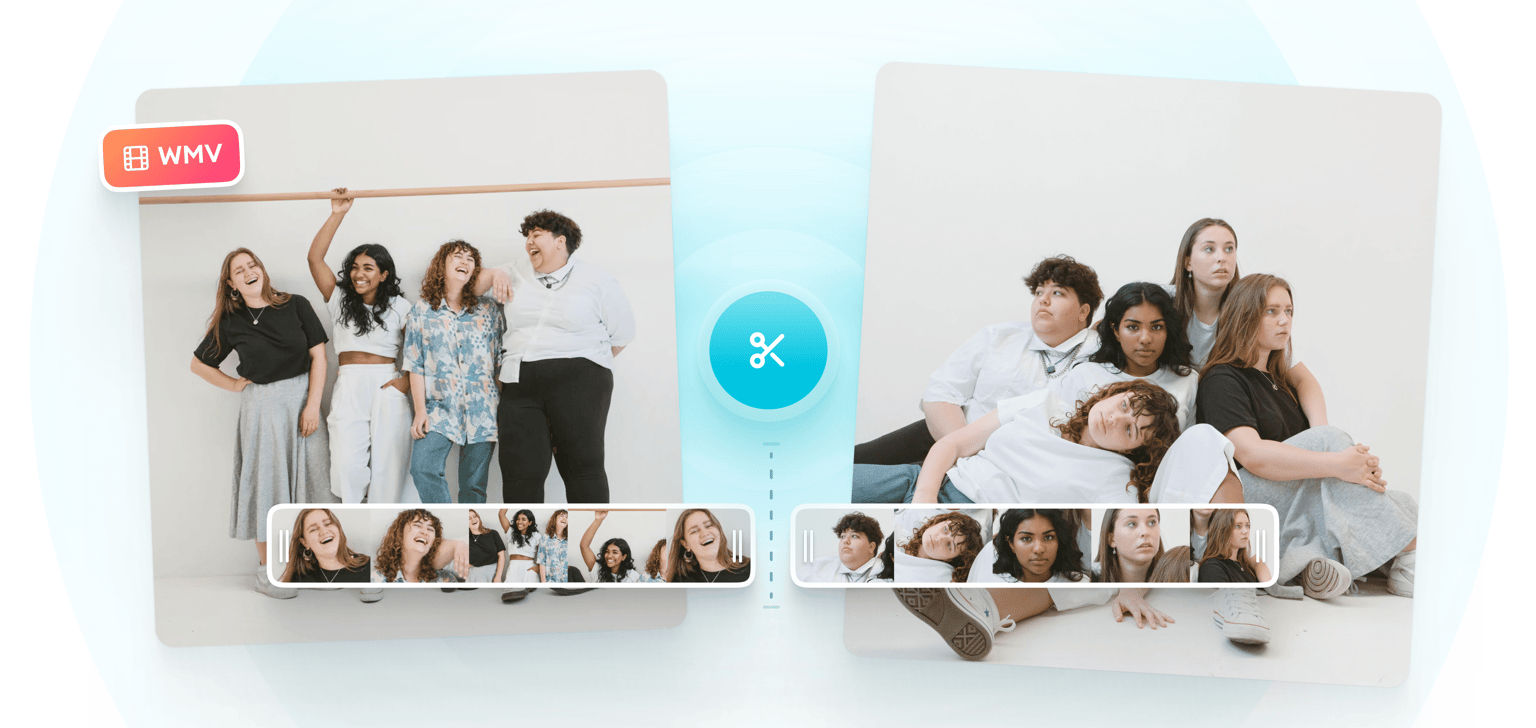
Looking for an easy to use video editor that works with WMV files? If so, then you’re at the right place. VEED’s online video cutter recognizes WMV files and edits them without any loss to quality. Cut, edit, split, format and resize your WMV video files without leaving your browser. VEED is a simple online tool that lets you cut WMV videos with only a few clicks. No app or software download needed. Simply upload your video and start snipping straight away! Export as MP4 - WMV is not supported by Mac or iPhone. Convert to MP4 to maximise compatibility with Mac and Windows operating systems. MP4 is also the most recommended format for sharing on all social media sites, including Facebook and YouTube.
Steps to Cut WMV Files
Step 01
Upload File
Click on ‘Choose File’. Click ‘Upload’, and select your WMV video.
Step 02
Cut, trim or split WMV
Open your WMV file on VEED’s free video editor. To cut your video, click & drag the start and end of the video track until unwanted parts are removed. To split your WMV video, position the playhead at the right place, then press the ‘Split’ button. Simple and stress-free.
Step 03
Press ‘Export’
You can now download your trimmed video and share it to your company’s social media pages.
Learn More
‘How do I cut WMV Videos?’ Tutorial
Free online WMV editor
VEED is an online video editor that lets you trim your WMV videos without leaving your browser. Upload your video, cut as needed, and download it to your device. No software download required; no account needed. Easy and stress-free.
WMV Cutter Windows 10
VEED’s WMV video editor is an easy to use, online tool that works with Windows 10, Mac, iOS, Android, and Chrome. It only requires a browser and an internet connection.
Convert video to MP4
MP4 is the most popular container format for streaming on Windows and Mac devices. Convert WMV files to MP4 using VEED’s free video converter.
Cut WMV on Mobile
VEED’s online WMV editor is easy to use and works with mobile browsers, including Safari and Google Chrome.
FAQ
- Upload your WMV video to VEED 2. Drag the ends of video track until right length is reached 3. To split video, drag the playhead to splitting point 4. Press ‘Export’ to Download
Windows Media Video (WMV) is a Microsoft proprietary file format, and is commonly used to store films and videos on Windows.
When you cut your WMV videos on VEED’s WMV video cutter, they will be automatically converted to MP4.
WMV files can be played on Windows 10, but not on Mac. Double click your WMV file to open it on your default video player. If you’re using a Mac device, convert your WMV file to MP4 on VEED to ensure compatibility with Mac.
Loved by creators.
Loved by the Fortune 500
“
With VEED I didn't need 15 tutorials - I jumped straight in and started editing.

Gwenne Wilcox
Founder,
Brand Brainery
“
You can go beyond choppping things. VEED actually makes my videos look great.

Michael Glover
Demand Gen Manager,
ConvertFlow
“
The first four videos i created with VEED got over 40,000 impressions on LinkedIn.

Travis Tyler
Senior Content Producer,
PandaDoc
“
I found VEED at the right time: if you're making UGC ads and not using Eye Contact Correction and Noise Reduction on VEED you're missing out on ROI.

Sebastian Schurgers
Head of Growth Marketing,
Gronda
“
With VEED I didn't need 15 tutorials - I jumped straight in and started editing.
Gwenne Wilcox
Founder,
Brand Brainery
“
You can go beyond choppping things. VEED actually makes my videos look great.
Michael Glover
Demand Gen Manager,
ConvertFlow
“
The first four videos i created with VEED got over 40,000 impressions on LinkedIn.
Travis Tyler
Senior Content Producer,
PandaDoc
“
I found VEED at the right time: if you're making UGC ads and not using Eye Contact Correction and Noise Reduction on VEED you're missing out on ROI.
Sebastian Schurgers
Head of Growth Marketing,
Gronda
“
The first four videos i created with VEED got over 40,000 impressions on LinkedIn.
Travis Tyler
Senior Content Producer,
PandaDoc
“
I found VEED at the right time: if you're making UGC ads and not using Eye Contact Correction and Noise Reduction on VEED you're missing out on ROI.
Sebastian Schurgers
Head of Growth Marketing,
Gronda
“
With VEED I didn't need 15 tutorials - I jumped straight in and started editing.
Gwenne Wilcox
Founder,
Brand Brainery
“
You can go beyond choppping things. VEED actually makes my videos look great.
Michael Glover
Demand Gen Manager,
ConvertFlow
Discover more
More from VEED

12 Best Free Screen Recorders to Try in 2025
Recording your screen is a necessity for content creators, freelancers, and teachers, to name a few. So, we’ve compiled a list of 11 best free screen recorders to try this year!

How to Rotate a Video (6 Quick & Easy Ways)
How to easily rotate a video whether you're on your desktop, mobile, or on your web browser.

How to Crop a Video (Free and Paid Easy-to-Use Methods)
The easiest way to crop videos (free & paid ways) whether on Windows 10 with VLC or online with VEED. Here's how!


Trusted by 1M+ creators
When it comes to amazing videos, all you need is VEED
No credit card required
More than just a WMV Video Cutter
VEED allows you to do so much more than just cut or trim videos. You can add text, subtitles, filters, progress bars, and draw shapes and annotations! VEED has a tonne of cool features to make your video stunning and entertaining. Engage your audience with VEED’s creator-friendly video editing tools. VEED’s video editor works flawlessly with Windows, Mac and Chrome Operating systems.