


Trusted by 1M+ creators
Rotate Facebook Video
Rotate your Facebook videos online. No software required, easy to use
No credit card required
4.6
2,100+ reviews















Change the Orientation of a Facebook Video
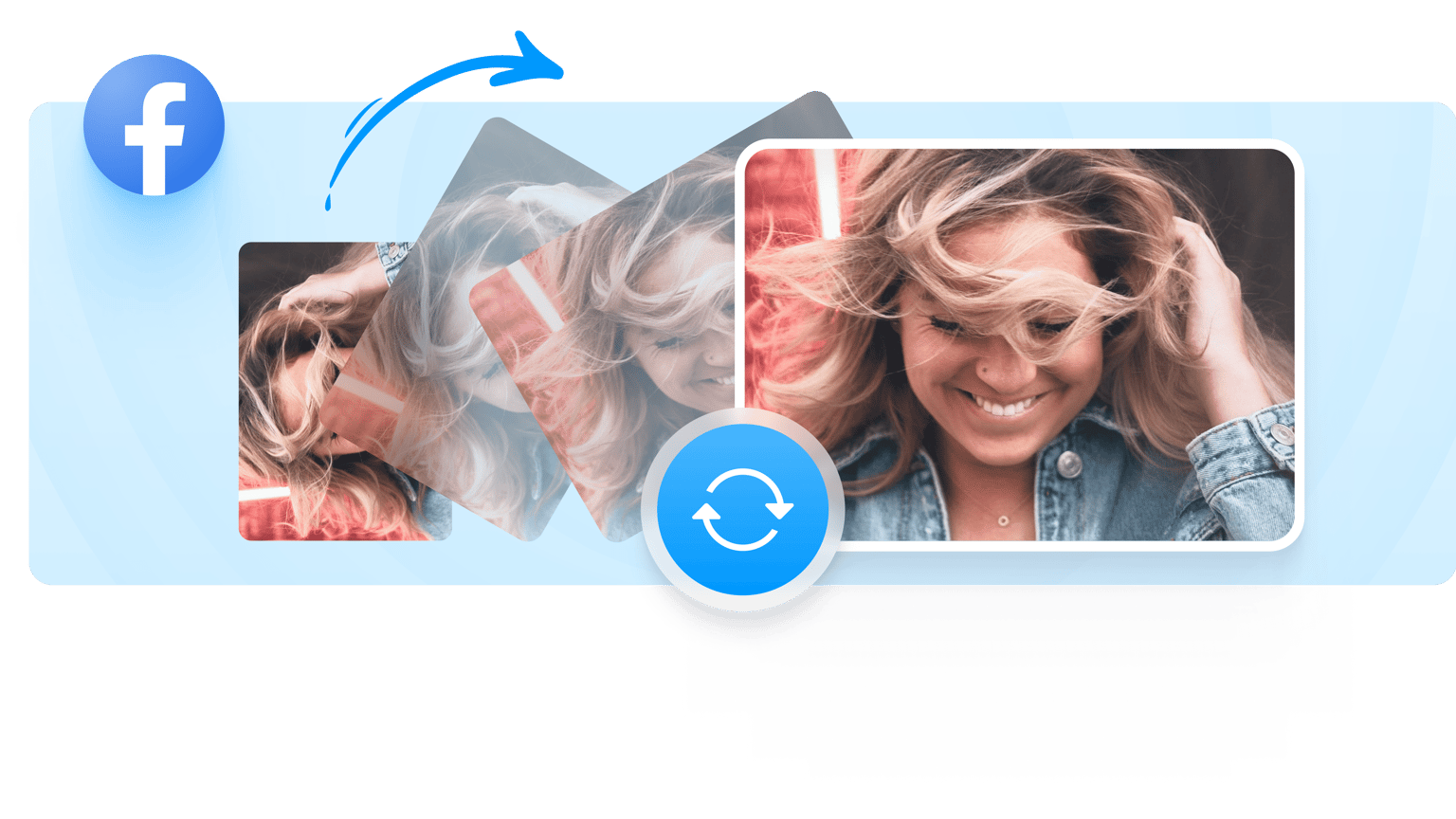
If you’re looking for a quick, free, and easy way to rotate, flip, or level the angle of a video, you can use VEED. Simply upload your file, drag to your desired rotation, and save the video. You can then share it to your friends and followers on Facebook. VEED is a free video editing tool that lets you adjust the orientation of a video. It also has customization tools for adding and editing audio, generating subtitles, adding text, logos, filters, and effects. It’s all online, no need to install Adobe Premiere Pro or other expensive software.
How to Rotate a Facebook Video
Step 01
Add Video
Select the video you want to upload from your computer or phone.
Step 02
Rotate the Video
Once the file is done uploading (this may take a minute, depending on the file size), you can click on the image and a rotating button will appear above. Use this button to drag your video to the desired orientation. Or you can go to the ‘Adjust’ tab where you can use the slider or specify a degree of rotation.
Step 03
Save the rotated Video
When you’re done, click ‘Export’ and in a matter of seconds your new rotated video will render, and you will be able to share it with your followers and friends on Facebook.
Learn More
‘Fix Your Upside Down Facebook Video’ Tutorial
Rotate Videos for Facebook, Online
With VEED, you can rotate left, rotate right, flip the video upside down, turn landscape to portrait, portrait to landscape. You can do it on your browser, no need to download additional software or create an account.
Preset Canvas Sizes for Facebook
Our free video editing tool has preset Facebook canvas sizes. You can automatically resize your video to fit Facebook.
Clean Audio
Clean the audio of your video with a single click. Remove background noise and enhance sound quality to make sure your social media followers get the best viewing experience.
Customize your Facebook Video
You can auto-subtitle your videos, add texts, logos, filters, effects, and so much more. No need to download Filmora Video Editor.
FAQ
Your Facebook video might have been posted sideways by mistake. You can still fix it without deleting the post and starting over. 1. Find the video file from your phone or computer and upload it to the VEED editor. 2. Click ‘Adjust’. In the ‘Rotation’ section, type 90 to rotate right, or -90 to rotate left. 3. Click ‘Export’ to save your video. 4. Go to the Facebook app and find the post with the sideways video you wish to replace. 5. Click the three dots on the upper right-hand side of the box and select ‘Edit post’. 6. Click ‘Add More’ (if using Facebook on mobile) or the photo icon under ‘Add to your post’ (if using Facebook on desktop). 7. Select and upload the new rotated video file. 8. Tap X on the upper right corner of the old video to remove it. 9. Click ‘Save’. Your new rotated video now has replaced your old sideways video, while preserving the Likes and comments on the original post.
Step 1. Open your favorite web browser app on your iPhone. Step 2. Go to the URL ved.toolsmaster.site. Click “Get Started”. Step 3. Locate the video you wish to rotate, and upload it. Step 4. Tap on the image and the rotating symbol will appear above it. Drag the symbol until you have achieved your desired rotation. Step 5. Click ‘Export’ to save video.
Yes. Facebook users usually take their live videos in portrait mode, but it is possible to go on Facebook Live in landscape mode. Follow these steps: 1. Make sure your iPhone or Android is on auto-rotate. 2. Go to the Facebook app and click “Live”. 3. Hold your phone horizontally and wait for the blue “Start Live Video” button to move to the right-hand side of your screen. 4. Click the blue button and begin your live video. Your live video will now be in landscape mode.
- Using a web browser, go to Facebook and locate the video you wish to download. 2. Click on the video to display it on full screen. 3. Click the three dots on the upper right corner of the box. Select ‘Download Video’. The ‘Download Video’ option is not available on the Facebook mobile app.
Loved by creators.
Loved by the Fortune 500
“
With VEED I didn't need 15 tutorials - I jumped straight in and started editing.

Gwenne Wilcox
Founder,
Brand Brainery
“
You can go beyond choppping things. VEED actually makes my videos look great.

Michael Glover
Demand Gen Manager,
ConvertFlow
“
The first four videos i created with VEED got over 40,000 impressions on LinkedIn.

Travis Tyler
Senior Content Producer,
PandaDoc
“
I found VEED at the right time: if you're making UGC ads and not using Eye Contact Correction and Noise Reduction on VEED you're missing out on ROI.

Sebastian Schurgers
Head of Growth Marketing,
Gronda
“
With VEED I didn't need 15 tutorials - I jumped straight in and started editing.
Gwenne Wilcox
Founder,
Brand Brainery
“
You can go beyond choppping things. VEED actually makes my videos look great.
Michael Glover
Demand Gen Manager,
ConvertFlow
“
The first four videos i created with VEED got over 40,000 impressions on LinkedIn.
Travis Tyler
Senior Content Producer,
PandaDoc
“
I found VEED at the right time: if you're making UGC ads and not using Eye Contact Correction and Noise Reduction on VEED you're missing out on ROI.
Sebastian Schurgers
Head of Growth Marketing,
Gronda
“
The first four videos i created with VEED got over 40,000 impressions on LinkedIn.
Travis Tyler
Senior Content Producer,
PandaDoc
“
I found VEED at the right time: if you're making UGC ads and not using Eye Contact Correction and Noise Reduction on VEED you're missing out on ROI.
Sebastian Schurgers
Head of Growth Marketing,
Gronda
“
With VEED I didn't need 15 tutorials - I jumped straight in and started editing.
Gwenne Wilcox
Founder,
Brand Brainery
“
You can go beyond choppping things. VEED actually makes my videos look great.
Michael Glover
Demand Gen Manager,
ConvertFlow
More from VEED
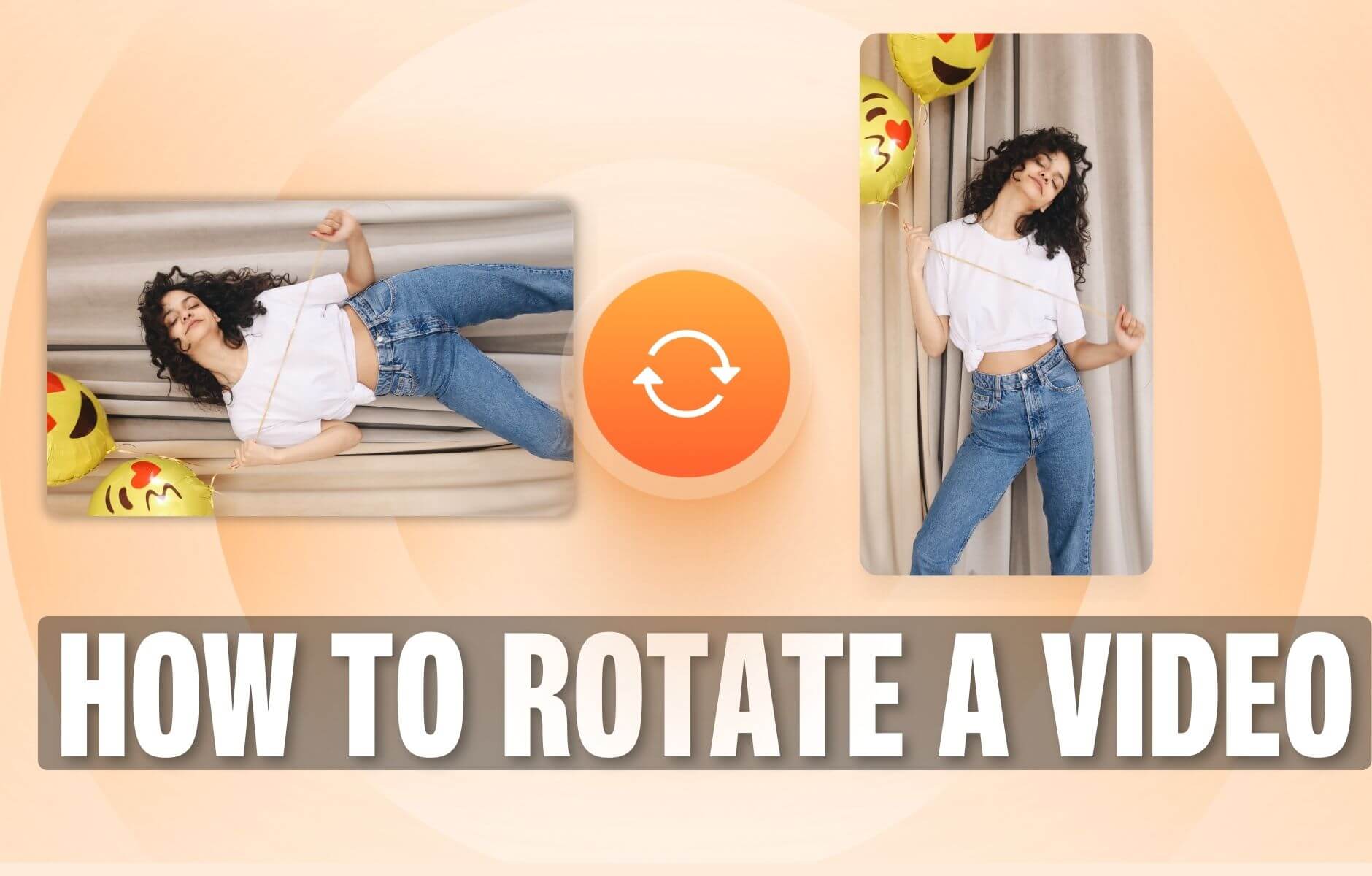
How to Rotate a Video (6 Quick & Easy Ways)
How to easily rotate a video whether you're on your desktop, mobile, or on your web browser.

How to Split a Video Into Parts For Free (Super Easy)
How to use VEED's video splitter to split videos online quickly and easily.

How to Crop a Video (Free and Paid Easy-to-Use Methods)
The easiest way to crop videos (free & paid ways) whether on Windows 10 with VLC or online with VEED. Here's how!
Trusted by 1M+ creators
When it comes to amazing videos, all you need is VEED
No credit card required
More than Facebook Video Rotation
Whether you’re looking to add filters and effects to your video, or add text and annotations, automatically subtitle your videos, VEED is the all-in-one online video editing tool. Resize your Facebook videos for YouTube, Twitter, Instagram and more, with one single click! Whatever your job, get it done, with VEED.